Script Editor
The script editor is where you write, edit, and manage your bot's automation code. It is a full-featured code editor built on Monaco (the same editor that powers VS Code), embedded directly in the hidettp interface.
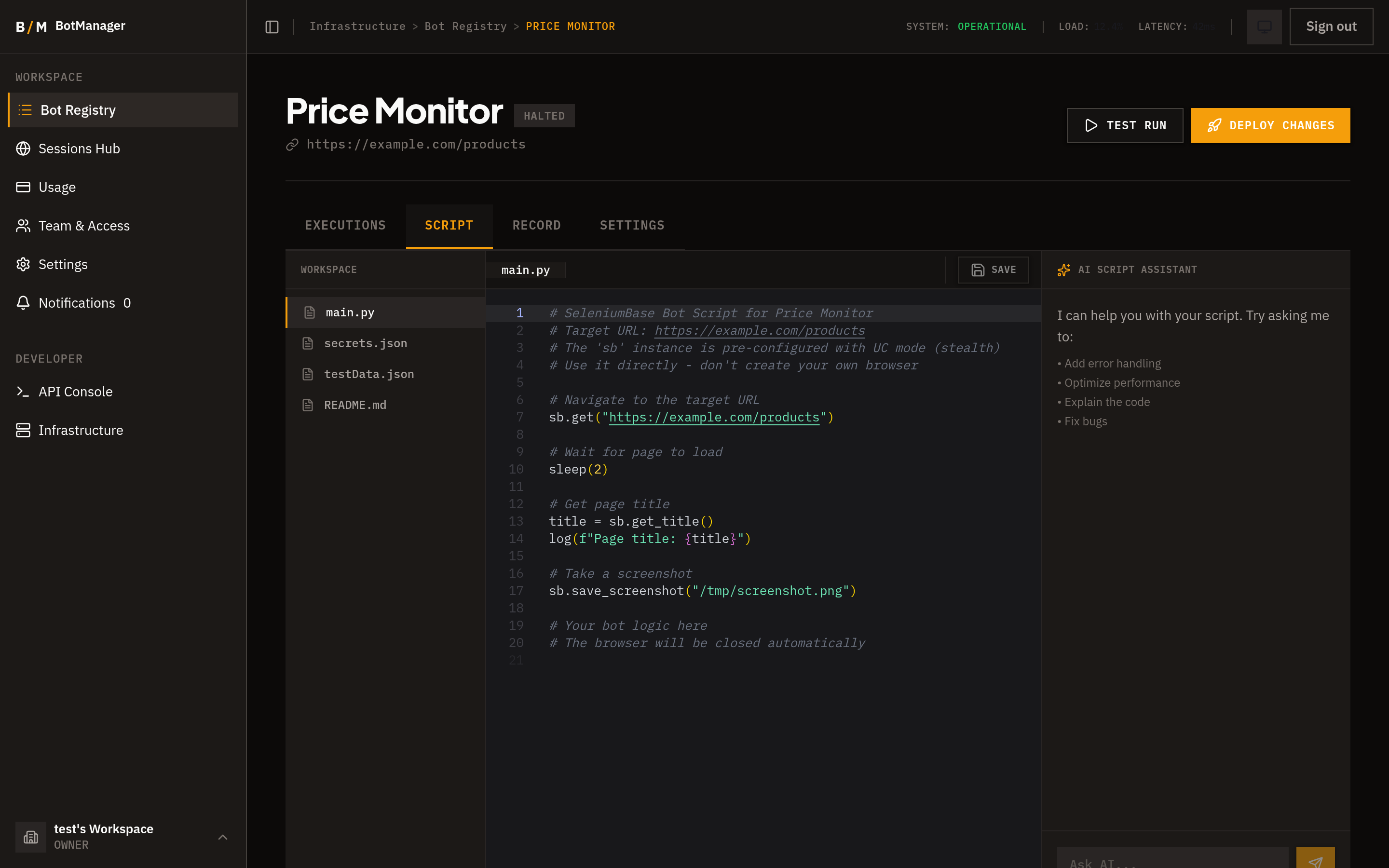
Editor Features
Syntax Highlighting
The editor provides Python syntax highlighting with support for SeleniumBase APIs, making it easy to read and write automation scripts.
Multi-File Support
Bots can have multiple script files. A file explorer panel on the left lets you create, rename, and switch between files. This is useful for organizing helper functions, configuration, or splitting complex automations into modules.
Auto-Save
Scripts are saved automatically. You can also press Ctrl+S to trigger an immediate save.
Script Versioning
Every save creates a new version of the script. You can view the version history and revert to a previous version if a change breaks your automation.
Available Globals
Bot scripts run in an environment with several pre-configured globals and helper functions:
Core
sb-- The SeleniumBase browser instance. This is your primary interface for interacting with the browser (clicking, typing, navigating, extracting, etc.).log(message)-- Log a message that appears in the execution logs.sleep(seconds)-- Pause execution for a fixed duration.random_sleep(min, max)-- Pause for a random duration within a range, useful for mimicking human behavior.
Element Interaction
safe_click(selector)-- Click an element with built-in retry and error handling.press_key(key)-- Press a keyboard key.click_element_resilient(selector)-- Click using multiple fallback locator strategies.find_element_resilient(selector)-- Find an element using multiple fallback locator strategies.
Verification
verify_element_exists(selector)-- Check that an element is present on the page.verify_element_disappeared(selector)-- Wait until an element is no longer present.verify_element_has_text(selector, text)-- Confirm an element contains specific text.verify_element_text_changed(selector, original_text)-- Wait until an element's text changes from a known value.
Data and Network
wait_and_capture_network(pattern)-- Wait for a network request matching a pattern and capture its response.format_with_ai(data, prompt)-- Use AI to format or restructure extracted data.get_page_structure()-- Get a structured representation of the current page's DOM.
Captcha and Downloads
solve_captcha_2captcha()-- Trigger captcha solving via the 2Captcha provider.wait_for_download(timeout)-- Wait for a file download to complete.download_file(url)-- Download a file from a URL.
Pipeline Mode
stepdecorator -- Decorate functions to create a step-based pipeline with progress reporting (see execution modes below).
Execution Modes
Bot scripts can run in one of two modes:
Legacy Mode
The default mode. Your script runs as a single Python file from top to bottom. All output and logging goes to the execution log.
sb.open("https://example.com")
sb.click("#search-button")
data = sb.get_text("#results")
log(f"Found: {data}")
Pipeline Mode
A structured mode where you decorate functions with @step to create a pipeline. Each step is reported individually in the execution UI, giving you granular progress tracking.
@step("Open search page")
def open_page():
    sb.open("https://example.com")

@step("Perform search")
def search():
    sb.type("#query", "automation tools")
    sb.click("#search-button")

@step("Extract results")
def extract():
    results = sb.get_text("#results")
    log(f"Found: {results}")
    return results
Pipeline mode is recommended for complex automations because it provides better visibility into where failures occur and makes scripts easier to maintain.