Bot Settings
The Settings tab on a bot's detail page contains all configuration options that control how the bot runs. Settings are organized into sections and auto-save as you make changes.
General
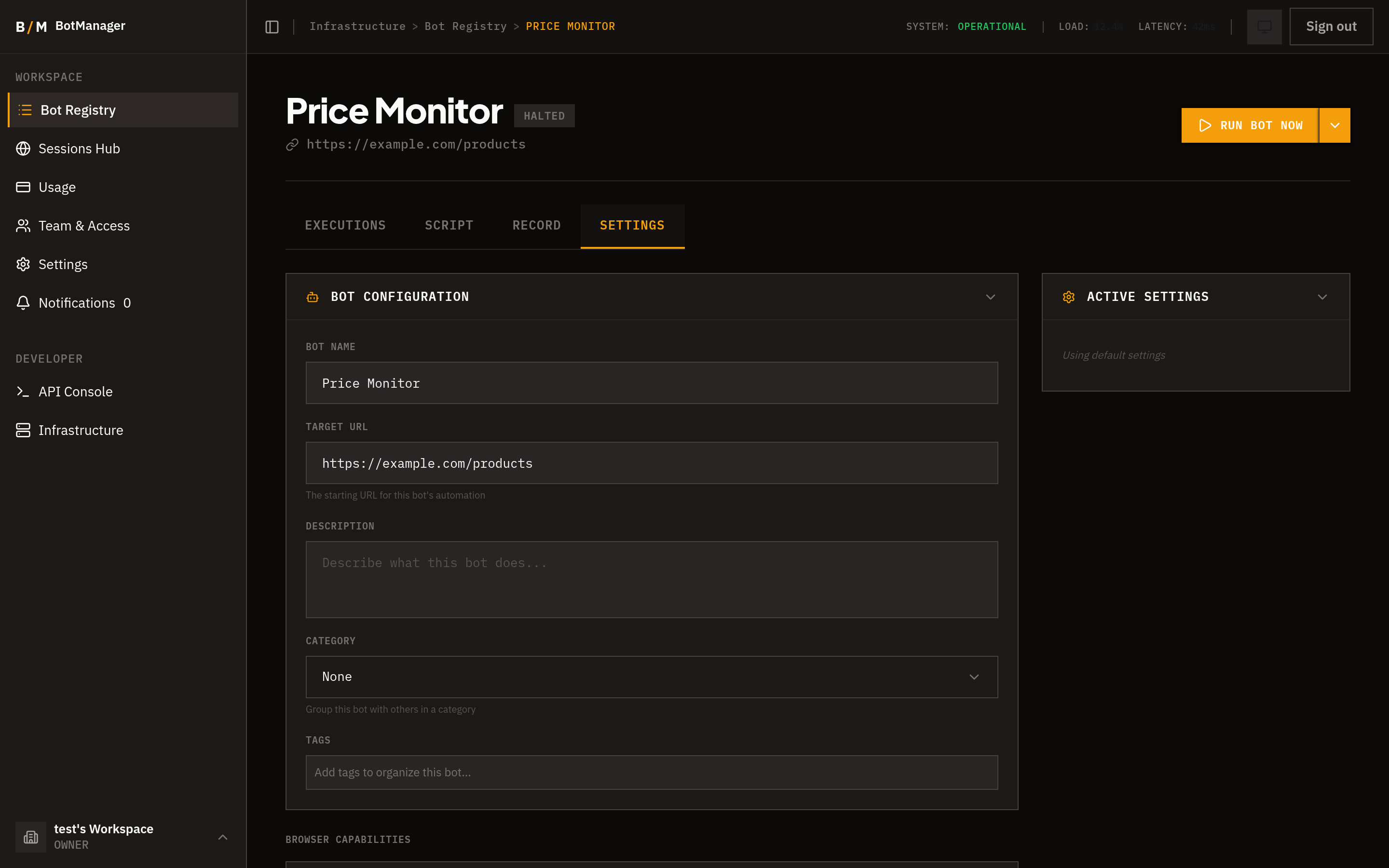
Basic bot identification and metadata.
- Name -- The bot's display name.
- Target URL -- The starting URL the bot navigates to when it runs.
- Description -- A summary of what the bot does. This is also provided to the AI assistant as context for script generation and debugging.
- Tags -- Labels for organizing and filtering bots in the dashboard (e.g., "pricing", "daily", "critical").
- Category -- A grouping label for related bots (e.g., "E-commerce", "HR", "Finance"). Bots in the same category can be collapsed together in the dashboard.
Identity and Stealth
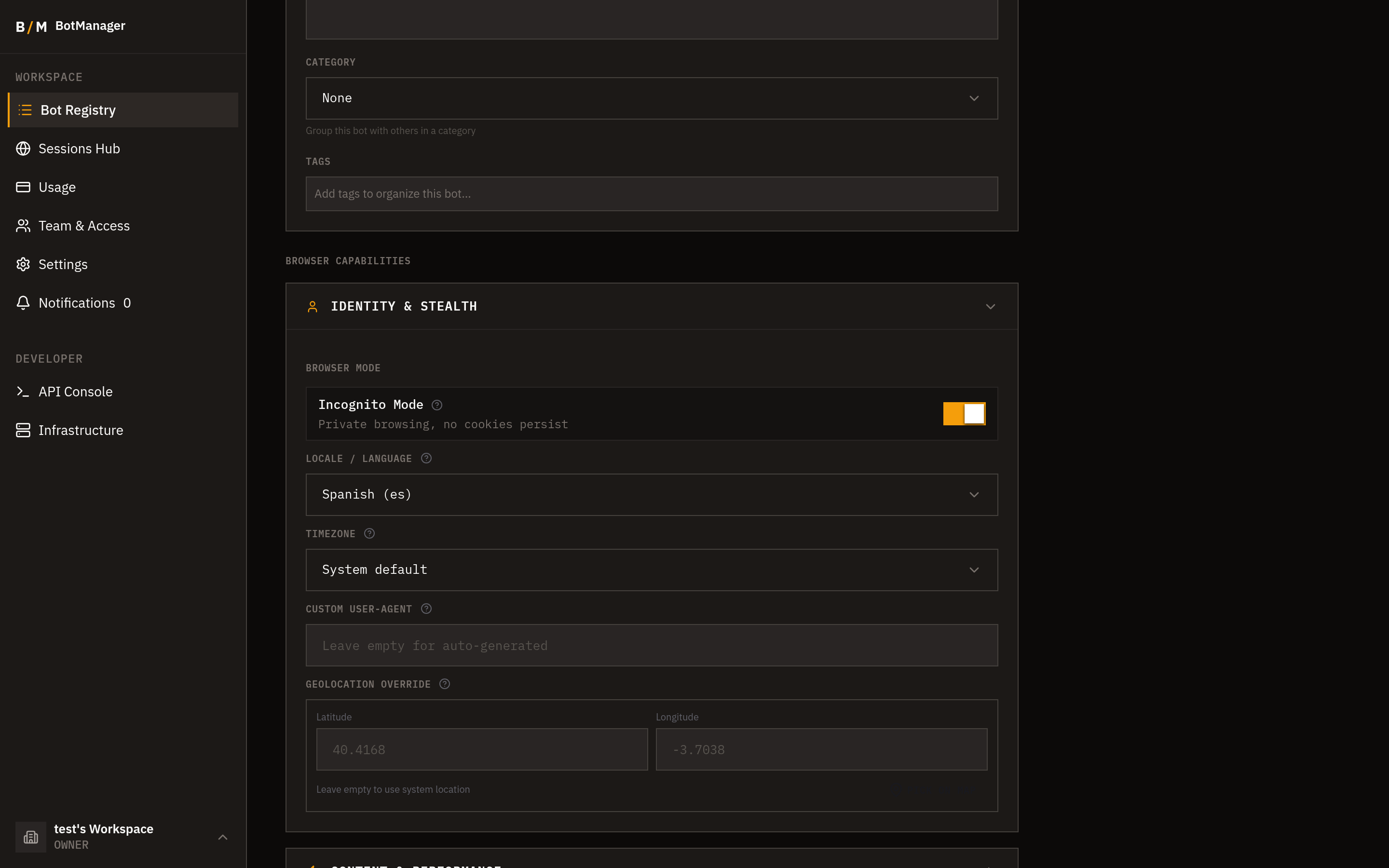
Settings that control the browser's identity and anti-detection profile.
- Incognito mode -- Run the browser in incognito/private mode, preventing cookies and storage from persisting between runs.
- Locale -- Set the browser's language and locale (e.g.,
en-US,fr-FR). Affects content language, number formatting, and date display on sites that localize based on browser settings. - Custom user agent -- Override the browser's user agent string. Useful for mimicking a specific browser version or device, or for rotating user agents to avoid detection.
- Timezone -- Set the browser's timezone (e.g.,
America/New_York,Europe/London). Sites that use JavaScript timezone APIs will see this value instead of the server's actual timezone. - Geolocation coordinates -- Set the browser's reported GPS coordinates (latitude and longitude). Sites that request geolocation permission will receive these coordinates.
Content
Settings that affect how page content is loaded and rendered.
- CSP disable -- Disable Content Security Policy enforcement. Some sites use CSP headers that block injected scripts; disabling CSP allows the bot to interact with these pages.
- Ad blocking -- Block ads and trackers during execution. Reduces noise, speeds up page loads, and avoids ad-related popups that can interfere with automation.
- Shadow DOM support -- Enable interaction with elements inside Shadow DOM trees. Required for sites that use web components.
- Mobile emulation -- Emulate a mobile device (viewport size, touch events, device pixel ratio). Useful for automating mobile-specific layouts and behaviors.
Network
Proxy and network configuration.
-
Proxy configuration -- Set a proxy server for all browser traffic. Supports HTTP, HTTPS, and SOCKS5 proxies. Enter the proxy URL in the format
protocol://host:portorprotocol://user:password@host:port. -
Proxy provider selection -- Instead of entering a proxy manually, select a pre-configured proxy provider. hidettp integrates with major residential proxy services:
- Bright Data
- Oxylabs
- SmartProxy
- IPRoyal
Provider credentials are configured at the organization level.
Display
Browser window and rendering settings.
- Screen resolution -- Set the browser viewport dimensions (width and height in pixels). Affects how responsive layouts render and what elements are visible without scrolling.
- Custom browser arguments -- Pass additional command-line arguments to the Chrome instance. This is an advanced setting for fine-tuning browser behavior (e.g., disabling GPU rendering, setting memory limits, or enabling experimental features).
Execution
Settings that control how the bot runs.
- Timeout -- Maximum execution time in seconds. If the bot has not completed within this limit, the execution is terminated with a "timeout" status. Set this based on how long your automation typically takes, with a reasonable buffer.
- Browserbase integration -- Run the bot on Browserbase infrastructure instead of hidettp's built-in runners. Browserbase provides managed browser instances with their own anti-detection and proxy capabilities.
- Human intervention mode -- When enabled, the bot can pause execution and request a human operator to take over the browser session. The human resolves the issue (e.g., a complex captcha, an unexpected dialog), then hands control back to the bot. Useful for automations that occasionally encounter situations requiring human judgment.
Webhook
Configure where and how extracted data is delivered after each execution.
- Endpoint URL -- The URL that receives webhook payloads when an execution completes with extracted data.
- Authentication method -- How the webhook request is authenticated:
- None -- No authentication. The endpoint receives raw POST requests.
- HMAC-SHA256 -- The request includes a signature header computed from the payload using a shared secret. Your endpoint verifies the signature to confirm the request is authentic.
- JWT -- The request includes a JSON Web Token in the authorization header. Your endpoint validates the token using a shared secret.
- Data path -- A dot-notation path for extracting a specific field from the bot's output data before sending it to the webhook. For example, if your bot outputs
{ "results": { "items": [...] } }, setting the data path toresults.itemssends only the items array to the webhook.
Auto-Save
All settings changes are saved automatically as you edit them. There is no separate "Save" button -- changes take effect immediately and apply to the next execution of the bot.