Creating Your First Bot
This guide walks you through creating a bot, recording an automation, running it, and viewing the results. By the end, you will have a working bot that can be scheduled or triggered on demand.
Step 1: Create the Bot
- From the dashboard, click New Bot.
- Fill in the bot details:
- Name -- A descriptive name (e.g., "Daily Inventory Check").
- Target URL -- The page your bot will start on (e.g.,
https://example.com/products). - Type -- Choose Extraction if you want to scrape data, or Action if the bot performs a task.
- Description (optional) -- A short summary of what this bot does. This description is also provided to the AI assistant as context.
- Tags (optional) -- Labels for filtering and organizing bots (e.g., "inventory", "daily").
- Category (optional) -- Group related bots together (e.g., "E-commerce", "HR").
- Click Create.
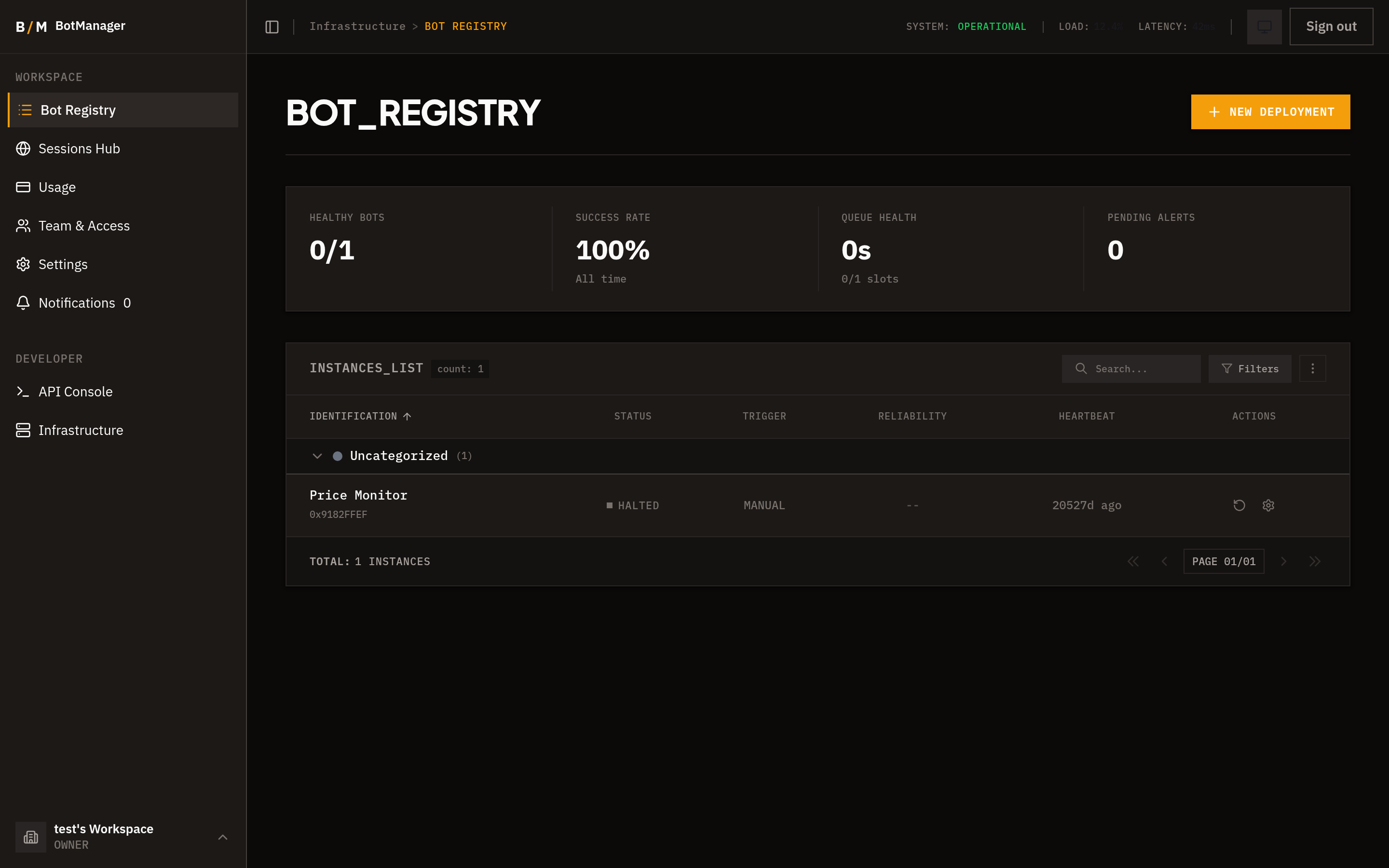
You are now on the bot detail page with four tabs: Executions, Script, Record, and Settings.
Step 2: Record Your First Automation
The visual recorder lets you interact with a live browser while hidettp captures each action as a replayable step.
- Navigate to the Record tab.
- A live browser session opens, loaded with your bot's target URL.
- Interact with the page as you normally would:
- Click buttons, links, or elements.
- Type into form fields.
- Scroll through content.
- Select options from dropdowns.
- To extract data from the page, use the Extract step type -- click on the element containing the data you want to capture.
- Each interaction is captured as a step in the step list on the side panel.
The recorder automatically captures CSS selectors for each element you interact with, using a self-healing approach with multiple fallback locator strategies.
Step 3: Review and Edit Steps
After recording, review the captured steps:
- Reorder steps by dragging them in the step list.
- Edit any step to change its selector, value, or timing.
- Delete steps that were accidental or unnecessary.
- Add manual steps for actions the recorder did not capture (e.g., wait conditions, assertions).
Each step shows:
- The action type (click, type, navigate, extract, etc.).
- The target element's selector.
- Any associated value (text input, URL, extracted field name).
Take a moment to verify that the steps match the workflow you want to automate.
Step 4: Run the Bot
Once your steps are ready:
- Navigate to the Executions tab.
- Click Run Now to trigger an immediate execution.
- The execution enters the pending state and is picked up by an available runner.
- Once a runner starts processing, the state changes to processing and you can watch the bot work in real time using the live view.
During execution, you can:
- Watch the browser -- A live stream of the bot's Chrome session, so you see exactly what it sees.
- Track step progress -- Each step is reported as it completes.
- Intervene -- If the bot encounters a problem and human intervention is enabled, you can take over the browser, resolve the issue, and hand control back.
Step 5: View Results
After the execution completes:
- Status -- The execution shows as success, failed, cancelled, or timeout.
- Extracted data -- For extraction bots, the scraped data is available in the execution details. If a webhook is configured, the data is also delivered to your endpoint.
- Logs -- Step-by-step execution logs show what happened, including timing and any errors.
- Video recording -- A video of the browser session is available for playback, useful for debugging failures.
- Downloaded files -- Any files the bot downloaded during execution are available for retrieval.
If the execution failed, check the logs and error details. You can refine your steps or script and run again. The AI assistant can also help diagnose failures -- it has access to the execution error context and can suggest fixes.